

How to Give Meta Access to MAP
Three short steps. Pick a step below to jump straight to it.
Create Your Business Page, Ad Account & Add Billing
Start here if you don’t have a Business Manager yet.
Clickhttps://business.facebook.comGo tobusiness.facebook.com
Log in with your normal Facebook account
Click‘Create Account’
Type your business name, your name and your business email
Click‘Pages’
Menu on the left, under Accounts
Click‘+ Add’ → ‘Create a New Page’
Pick a category, e.g. Local Business
Typeyour Page name and details
Add a profile photo, cover image and a short description
Click‘Ad Accounts’
Menu on the left, under Accounts
Click‘+ Add’ → ‘Create a New Ad Account’
Name it ‘Your Business – Ads’. Set currency to AUD
Chooseyour Business Page
Select the Page you just created
Click‘Payment Settings’
Inside the Ad Account: Settings → Payment Settings
Click‘Add Payment Method’
Enter your card details and Save
Share Your Assets With MAP
Give MAP partner access to your Page, Instagram, Ad Account and Pixel.
Clickhttps://business.facebook.com/latest/settings/partnersGo tothe Partners page
Click the blue button above, or in Business Manager go to Settings → Users → Partners
Click‘+ Add’ → ‘Give a Partner Access to Your Assets’
Not ‘Ask a Partner to Share Their Assets’
Type1098563013867581 → then click ‘Next’
Paste the number exactly as shown above
Chooseeach asset and set the access level below
Click‘Save Changes’
Done. MAP is notified and can start setup straight away
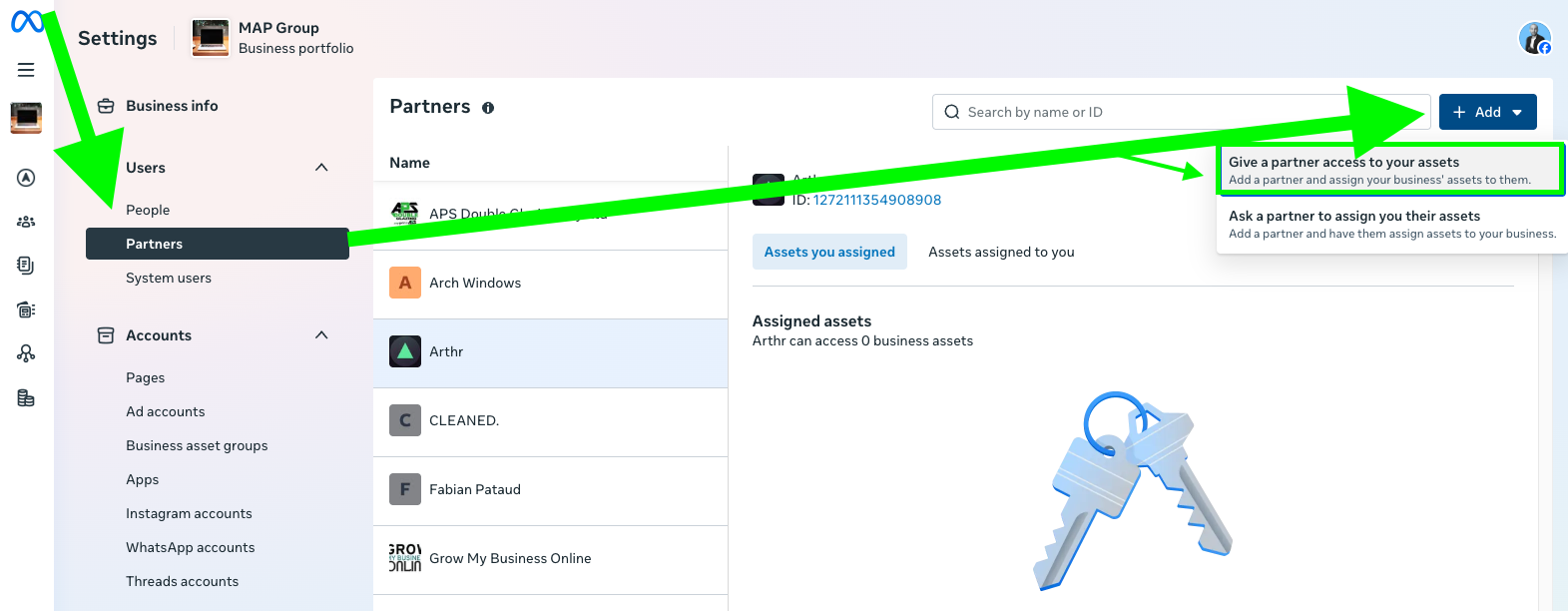
Follow the arrows: Users → Partners → ‘+ Add’ → ‘Give a partner access to your assets’
Add MAP as an Admin to Your Business Manager
Log in with the account that is Admin of your Business Manager.
Clickhttps://business.facebook.com/latest/settings/peopleGo tothe People page
Click the blue button above, or in Business Manager go to Settings → People
Click‘Settings’ → ‘People’
Menu on the left, under Users (not ‘Partners’)
Clickthe blue ‘+ Add’ button
A box appears asking for an email address
Exactly as shown above
Choose‘Admin Access’
Lets MAP manage ad accounts, pages, pixel and users for you
Click‘Next’ → ‘Send Invite’
MAP accepts the invite and confirms with you
Stuck on a step?
Reach out and we’ll walk you through it live on a quick screen-share.